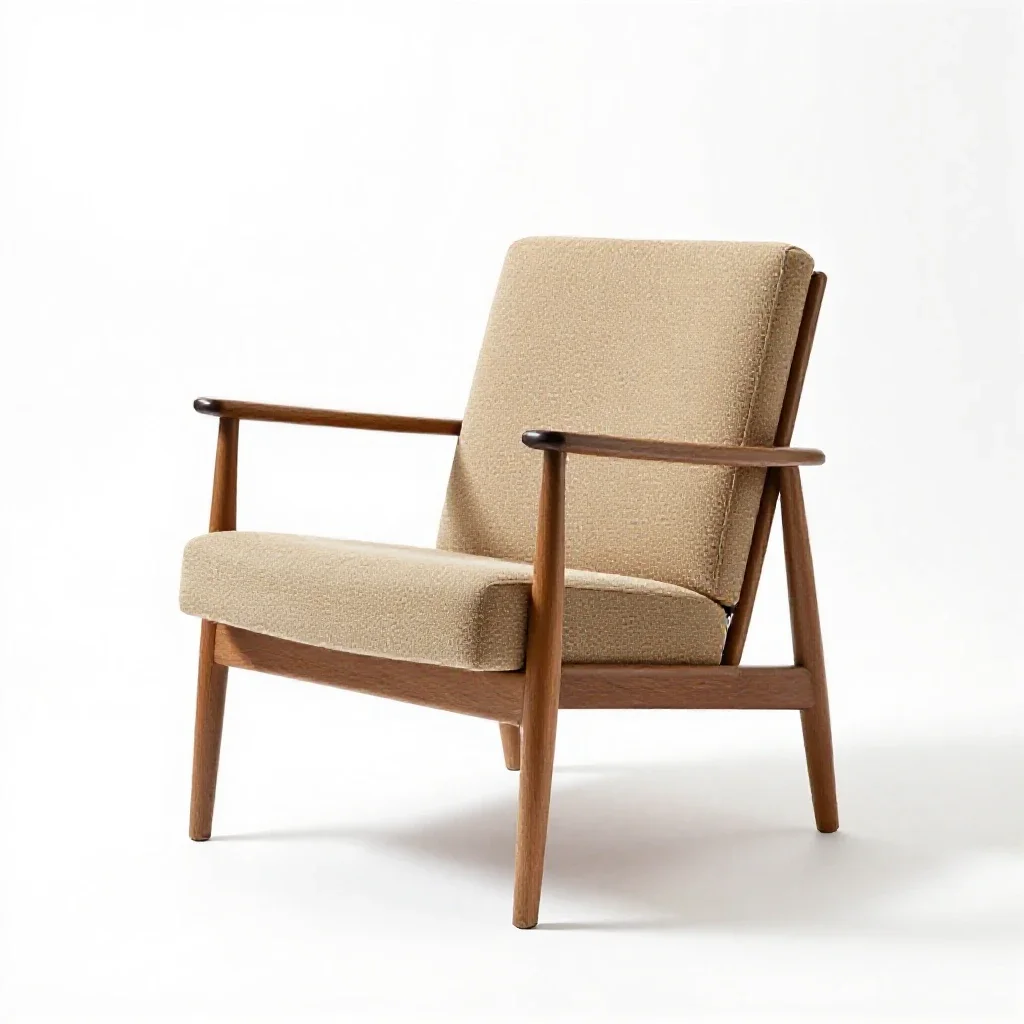
Step 1: choose a reference that shows one object
The image to 3D tool takes a picture of a single object and returns a textured GLB. White background product shots work best, because the whole frame then describes the thing you want. Center the subject, leave a margin on every side and keep the lighting even. The white background guide explains each of these rules.
No photo handy? Open the object library. Every image there follows the framing rules, so you can test the pipeline in a minute.
Step 2: pick a texture size
Pixal3D keeps the result aligned to the pixels of your reference image. You choose the texture size when you start the run. A 1024 texture costs 1 credit. Sizes of 2048 and 4096 cost 2 credits. Start at 1024 while you explore shapes, then rerun the winner at 2048 or 4096 when you need detail for close up renders.
Step 3: run it and review in 3D
You sign in, start the job and download the GLB, or send it straight to the editor. Orbit the model before you judge it. Check the back and the underside first, since those are the parts the reference could not show. If a side looks soft, try a second reference taken from a slightly different angle.
Step 4: finish in the editor
The editor opens GLB, GLTF, OBJ, STL and FBX files. Typical finishing moves are:
- Simplify the mesh to a lighter triangle count for web and game use. Conservative, balanced and aggressive modes let you trade detail for speed.
- Repaint areas of the texture with brush, fill, gradient, smudge and clone tools.
- Export a GLB for your game engine, or prepare the mesh for printing with the print readiness checks.
Using the API
Teams who want this in a pipeline can call the same tool over REST with a paid plan and an API key from the account page.
curl -X POST https://simplexgen.com/api/v1/tools/pixal3d-image-to-3d \
  -H "Authorization: Bearer $SIMPLEXGEN_API_KEY" \
  -H "Content-Type: application/json" \
  -d '{"image_url": "https://example.com/chair.webp", "texture_size": 1024, "remesh": true}'
The API reference lists every parameter at simplexgen.com/api-docs.
Iterate with intent
Treat the first run as a sketch. Change one thing at a time, such as the crop, the angle or the texture size, so you learn what improved the result. Keep a folder of your best references. Over a few sessions you will build a small set of images that reliably produce clean models, and you can reuse them as a template for new subjects.
Objects with simple silhouettes, like tools, furniture and props, tend to reconstruct cleanly. Thin parts and see through parts take a little more care, so give them a sharp, well lit reference with a clear outline.
A quick checklist
- One object, centered, plain background.
- Run at 1024 to explore, then raise the texture size for the keeper.
- Inspect the back and underside in the viewer.
- Simplify and repaint in the editor.
- Export the GLB.
Turn your first image into a 3D model
Upload a picture of one object and get a textured GLB.
Open the image to 3D toolRelated reading
- Why a white background makes better 3D
- TRELLIS.2 or Pixal3D for local image to 3D
- Image to 3D, paint and retopology
More from the same team: sitesim.net, webfiddle.net and chatgibidy.com.